
Açıklama
To get started, make sure to set your Turbo username in Settings > Turbo Button.
If you have not yet created an account, please visit Turbo for more information, and Turbo to register.
Plugin features and usage instructions:
-
Shortcode: In the WordPress visual editor, enter “[turbo $price]” in the location you would like to insert a payment link. The $price should be a valid dollar amount like $1.00. So to create a payment link for $1.00 use [turbo 1.00]. Save the post, and view the page in WordPress. The payment link will now redirect to your Turbo account’s landing page for checkout.
-
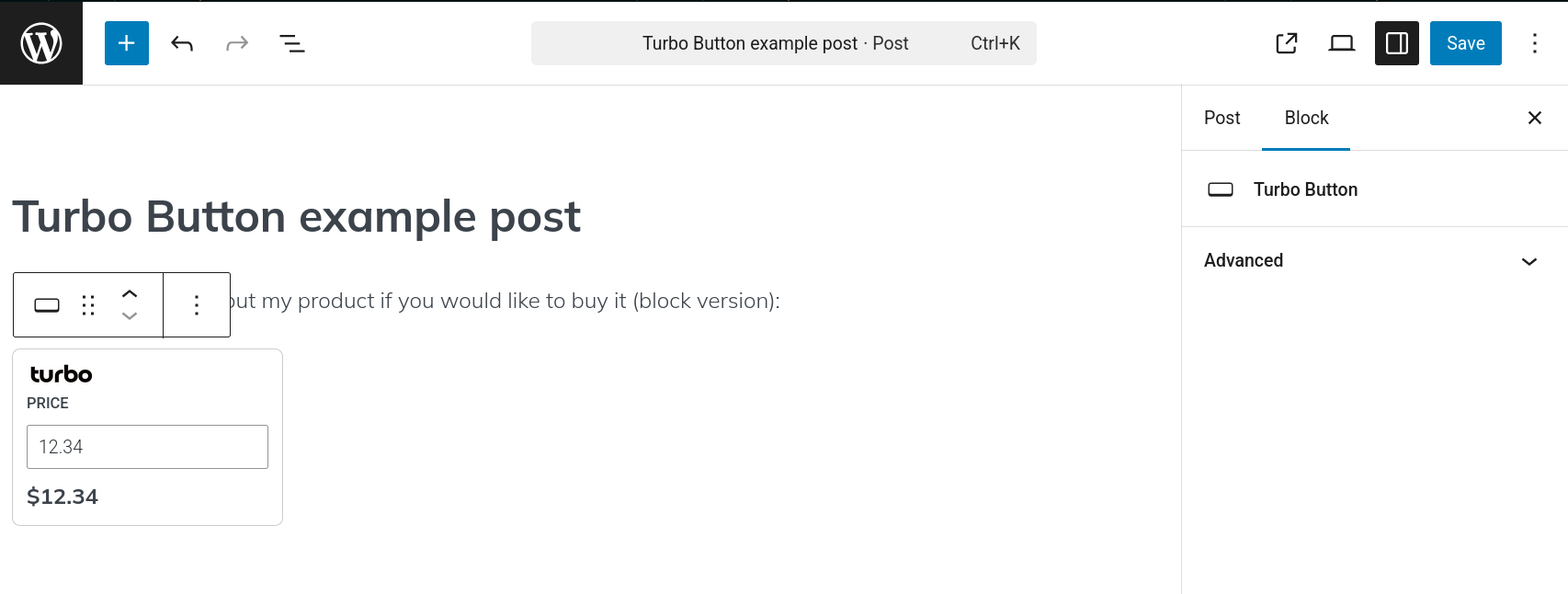
Gutenberg block: In the WordPress visual editor, enter /turbo, then select the Turbo Button block. Enter the price for the link you would like to create. Save the post, and view the page in WordPress. The payment link will now redirect to your Turbo account’s landing page for checkout.
Ekran Görüntüleri




SSS
How do I use this plugin?
Please see the usage instructions in readme.txt. The shortcode format is [turbo $price], where $price is any valid dollar amount like $1.00. Or enter /turbo, to select the Turbo Button block. Both of these formats can be used in the WordPress visual editor to quickly insert a payment link.
İncelemeler
Bu eklenti için herhangi bir değerlendirme bulunmuyor.
Katkıda Bulunanlar ve Geliştiriciler
“Turbo Button” açık kaynaklı yazılımdır. Aşağıdaki kişiler bu eklentiye katkıda bulunmuşlardır.
Katkıda bulunanlar
“Turbo Button” eklentisini dilinize çevirin.
Geliştirmeyle ilgilenir misiniz?
Kodu görüntüleyin, SVN deposuna göz atın ya da RSS ile geliştirme günlüğüne abone olun.
Değişiklik Kaydı
1.0
- Plugin supports both shortcode and Gutenberg block style payment link creation.